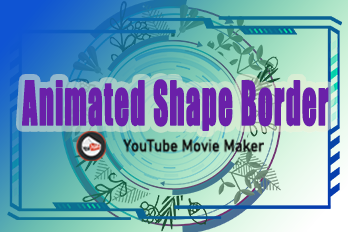
Last week, we updated an article about how to animate the shape borders with frames of images.
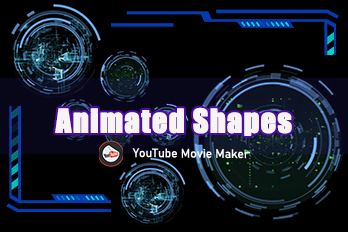
Recently, we updated lots of animated shape borders for you to download and to use in your videos. We’ll add a link to download all examples on this page at the end of this article.
How to add those shape borders (or shapes) to your YouTube Movie Maker(YMM)?
Step 1: Download the *.zip file to your desktop.
Step 2: Unzip it.
Step 3: Run the programme.
Step 4: Click the “Shape”.
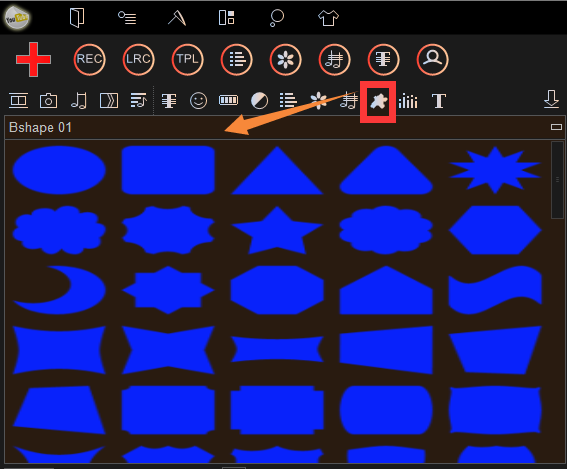
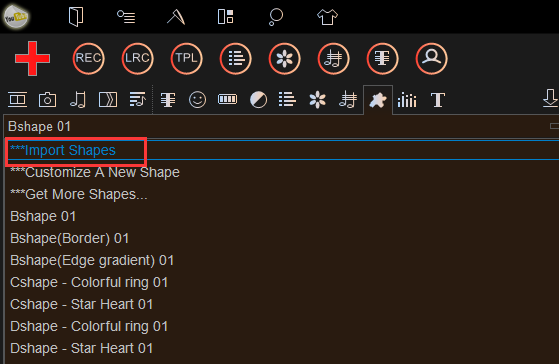
Then find “Input Shapes” in the ComboBox.
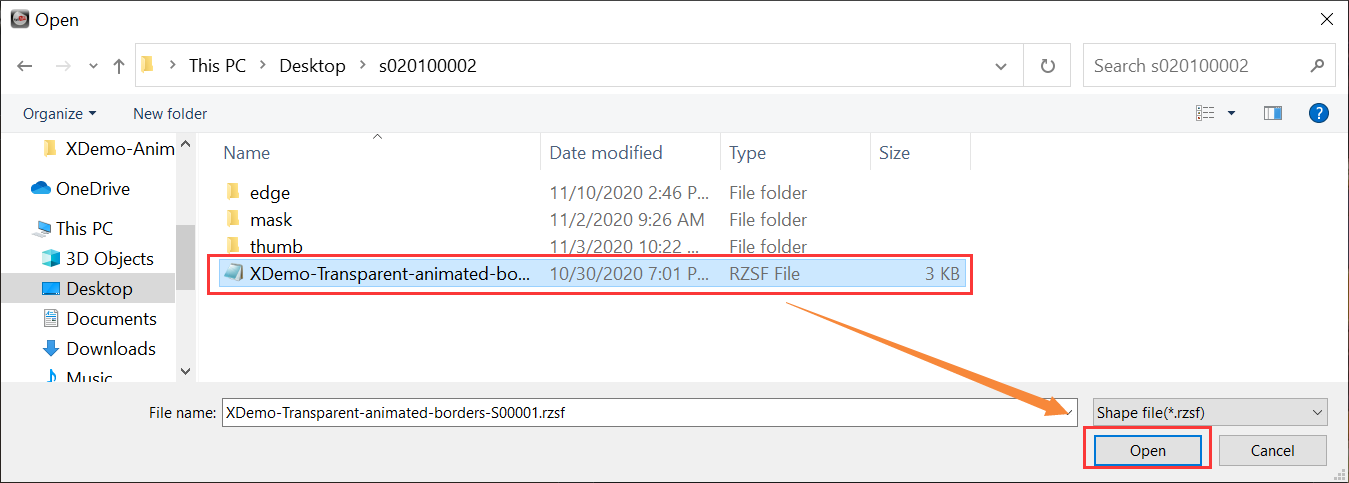
Step 5: Add all files to the program.
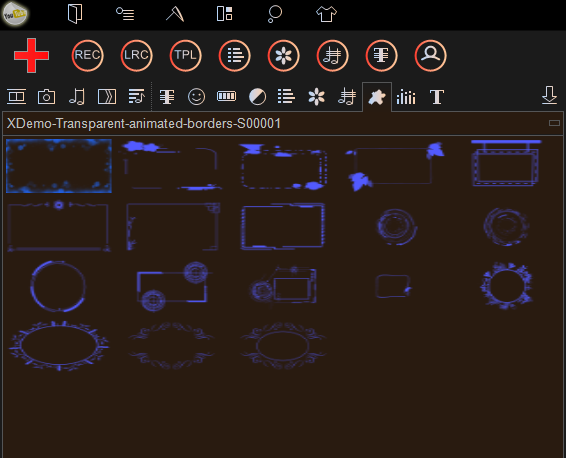
And then, you’ll see the animated shape borders in the resource basin.
Example 1 
Example 2 
Example 3 
Example 4 
Example 5 
Example 6 
Example 7 
Example 8 
Example 9
Example 10
Example 11
Example 12
Example 13
Example 14
Example 15
Example 16 
Example 17 
Example 18
Example 19 
Example 20 
Example 21 
Example 22 
Example 23 
Example 24 
Example 25 
Example 26 
Example 27 
We’ll keep updating more interesting and stunning shapes, text boxes, shape borders, etc.. You can follow our Facebook, Twitter, or YouTube to get the latest notifications.